
















Smartwatches
About smartwatches

General information
Use MyFreelap Legacy on your smartwatch to receive your timing data directly on your wrist during training. To date, this is the only Freelap app compatible with smartwatch use.
Compatible devices
Smartwatch use is based exclusively on the FxChip BLE. Announced compatibility includes :
- Apple Watch from watchOS 5.1
- Android Wear OS from Wear OS 2.0
- Samsung Gear from Wear 3.0
This solution was designed for simple, direct individual use. From the watch, you can configure your training session, start timing, receive live times, view recorded results and synchronize your data with your MyFreelap Legacy account.
However, teams and drills are not currently available on smartwatch.
Install MyFreelap Legacy
Installing MyFreelap Legacy depends on the type of smartwatch used. In all cases, start by properly pairing your watch with your phone or tablet, then install the app by following the procedure suited to your environment.
Samsung Gear
First install the Samsung Gear app on your phone or tablet. From this app, go to the recommended apps, search for MyFreelap Legacy, then start the installation on your watch.
Wear OS
Install the Wear OS app on your phone or tablet, then pair your watch with the mobile device. Next, download MyFreelap Legacy on the phone, then also install the app on the watch from the Play Store.
Apple Watch
Install the Apple Watch app on your iPhone or iPad, then download MyFreelap Legacy on the mobile device. If the watch is correctly paired, the app installs automatically on the Apple Watch and then appears on the home screen.
Download
Menu principal

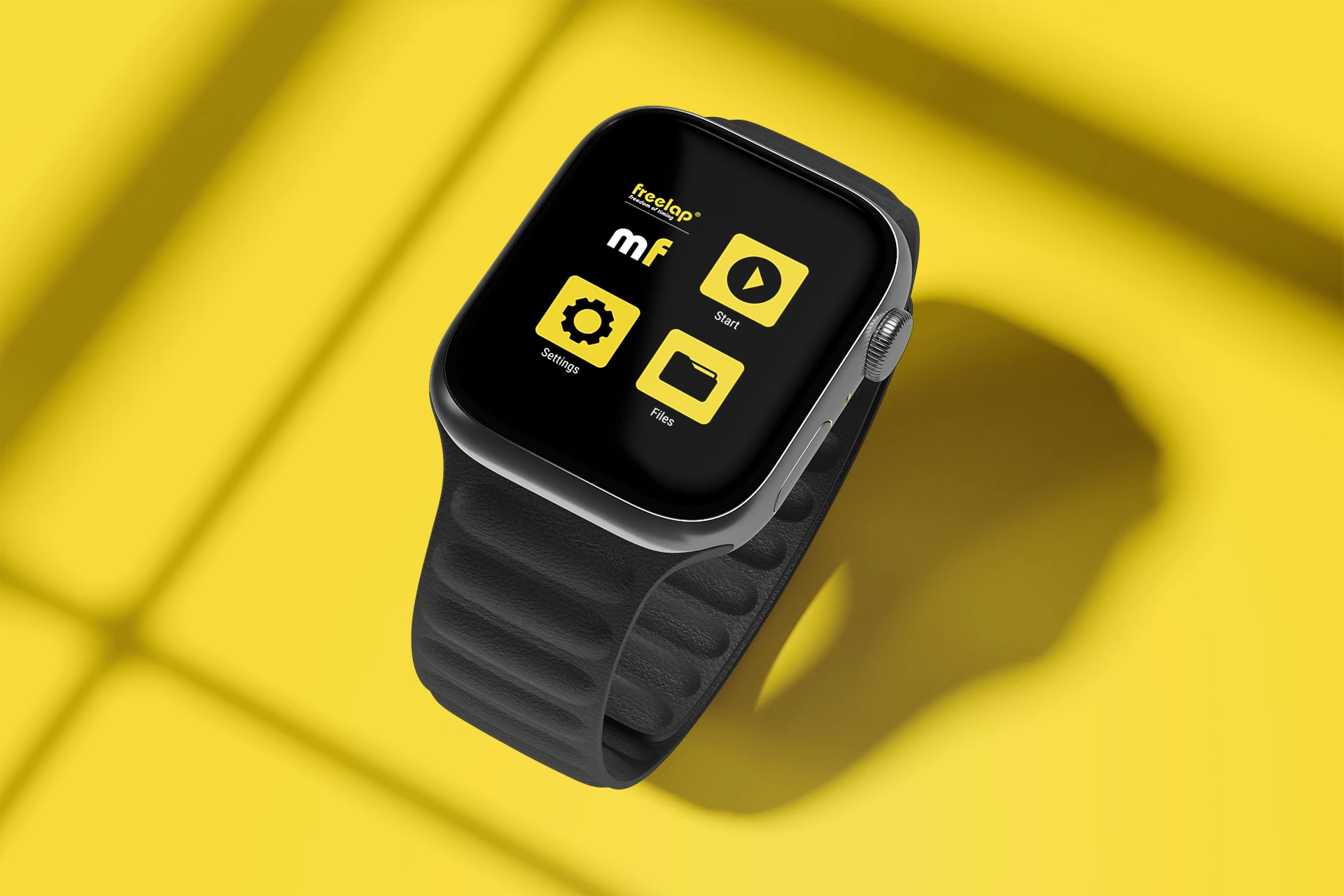
The smartwatch interface has been designed to focus on the essentials. From the main menu, you can quickly access the functions you need to prepare your session, start training and retrieve your saved data.
The menu is organized around 3 main entries :
Settings
Access your training settings, enter your transponder ID, choose your sport, add your initials and enable or disable certain options such as vibrations or recovery time display.
Start
Start your training session and receive your times directly on the watch during the session.
Files
Find previous training sessions, view saved results and access data before synchronization.
This simple navigation allows users to get started quickly directly from the watch, without going through a complex interface.
Configure your training session

Preconfiguration and tutorial
Before starting your session from the watch, begin by opening Settings from the main menu. This section allows you to define the essential settings needed to prepare your training session simply and quickly.
From Settings, you can:
- enter your transponder ID manually or detect it via Bluetooth
- choose the sport
- optionally enter your initials
- enable or disable vibrations
- enable or disable recovery time display
Once the settings have been completed, simply swipe left to return to the main menu and start training.
Smartwatch use remains intentionally simple: teams are not available, and drills are not yet supported. The watch is therefore designed for individual use, focused on the essentials.
Démarrer l’entraînement et recevoir les données

Last time received
Once training has started, the watch screen displays several pieces of live information:
- the transponder ID
- the battery level
- the initials
- the total lap time
- the cumulative split times
- a chart showing the number of times received and their proportion
- the recovery time, which starts when the athlete passes the finish transmitter before the next lap

List of received times
The guide indicates that by swiping right, the user can display the list of times for the training session. This screen shows :
- the sport
- the date
- the time
- the initials
then the list of received times:- lap number
- lap time
- number of intermediate passages
- cumulative times
- pause time
The guide also specifies that tapping on a time allows users to view the details of the split times.

End of training
To stop recording, the guide indicates that users must swipe left, then click the dedicated button. The data is then automatically saved in the Files section.
View and synchronize training sessions

View data
From the main menu, users can open Files to view all completed training sessions. The guide specifies that it is then possible to:
- open a training session to view its data
- tap on a time to display the split-time details
- delete a training session using the dedicated icon
- swipe left to return to the main menu
Synchronize data
The guide indicates that synchronization between the watch, the mobile app and the web service requires a MyFreelap Legacy account. Users must then:
- create a MyFreelap Legacy account if needed
- open the MyFreelap Legacy mobile app and log in
- check that the app is open on the watch
- check that the watch is correctly paired with the mobile device
- start synchronization from the app
Once validated, synchronization allows training sessions to be displayed on the mobile phone or tablet, as well as on the MyFreelap Legacy web account.
The guide also specifies that when there is no Internet connection, training sessions are saved locally on the mobile device and can then be synchronized later as soon as a connection becomes available again.
Useful resources
To go further, you can consult the following pages: