

Freelap Device Manager
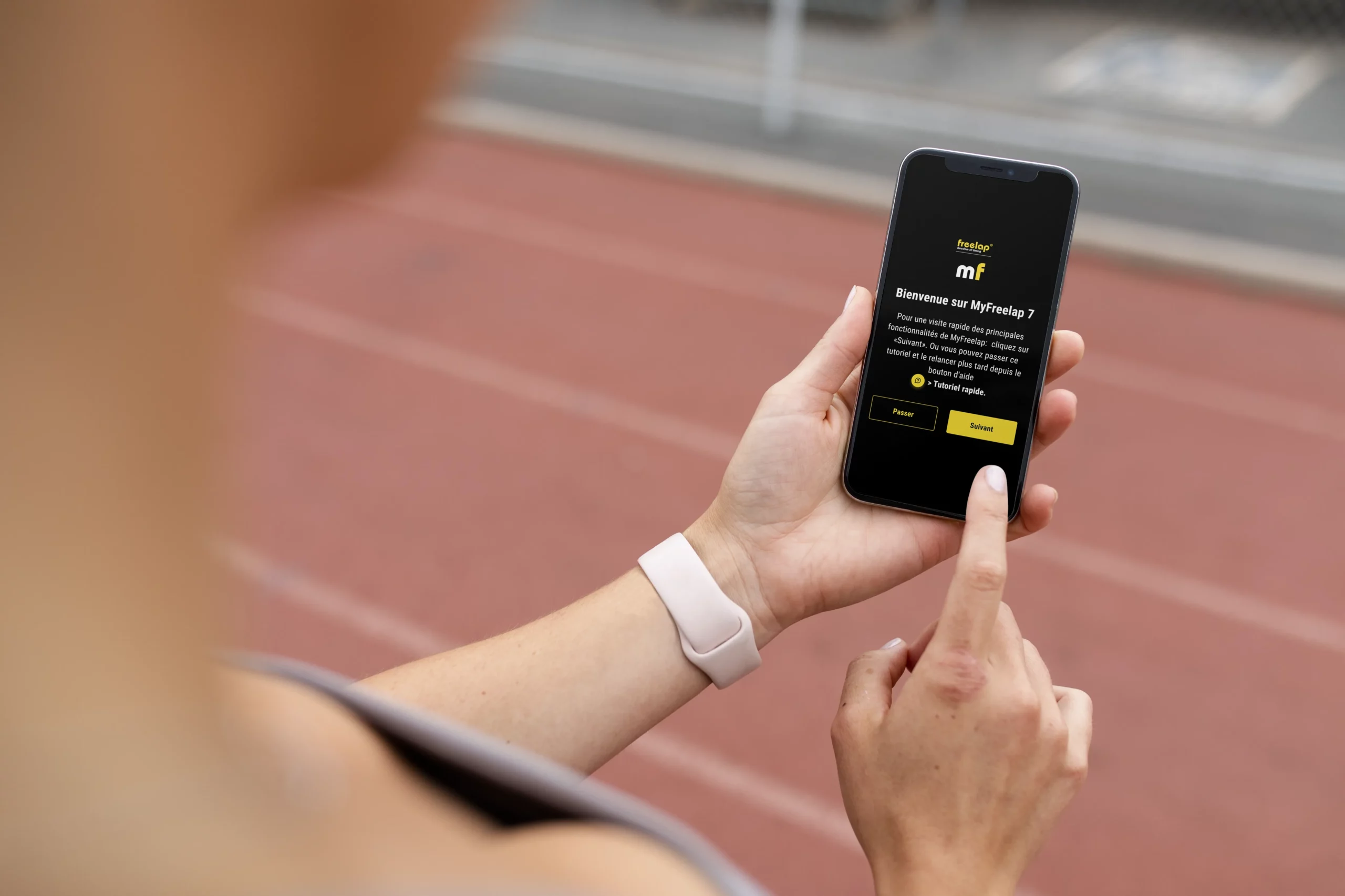
The Freelap Device Manager app is gradually being replaced by the new MyFreelap app. We encourage you to use MyFreelap to benefit from the latest features and improvements.
Find the complete Freelap Device Manager guide here to configure your Bluetooth-compatible Freelap devices, install updates and quickly access the useful features for each product. FDM is the official tool provided by Freelap for configuring and updating Bluetooth products within the ecosystem.
About Freelap Device Manager

Freelap Device Manager, or FDM, allows you to configure and update Freelap products with Bluetooth functionality. The official guide presents FDM as the reference tool for detecting devices, viewing their information, modifying certain settings and launching updates when they are available.
Unlike MyFreelap, which is used to start training sessions and make use of the data, FDM mainly operates upstream, at device level itself : detection, name, version, Bluetooth, battery, settings and firmware. This distinction is consistent with the current support structure, which clearly separates the MyFreelap Guide from the Freelap Device Manager Guide.
Download and update
Mobile app
The official guide indicates that the Freelap Device Manager app can be downloaded free of charge on smartphone from the App Store or Google Play Store.
Computer software
The guide also specifies that FDM software is available for computers. It is used in particular to update a Relay Coach BLE or LED Display in the case of a major update, when the device is running a version below 6.
Compatible devices
The guide indicates that FDM is compatible with all Freelap BLE products, namely :
- FxChip BLE
- FxSwim
- Relay Coach BLE
- LED Display
For mobile devices, the announced compatibility is :
- iOS 13 and later
- Android 6 and later
FxSwim
Detecting an FxSwim
To detect an FxSwim, the guide indicates that users must :
- enable Location Services and Bluetooth on the smartphone
- turn on the FxSwim by pressing the central button for 2 seconds
- wait 5 seconds
- check that it continues to flash
- open FDM and start detection
Here too, the device can be detected for 2 minutes before entering sleep mode.
Features
The information available in FDM for FxSwim is similar to that of the FxChip BLE:
- device image
- name
- HEX firmware version
- BLE version
- battery level
- update availability
- access to configuration
In the settings, the guide mentions:
- device ID
- version
- BLE version
Updating an FxSwim
As with the FxChip BLE, an update icon appears when a new version is available. The update is then launched via INSTALL and takes approximately 1 minute.
LED Display
Detecting an LED Display
The guide also distinguishes 2 methods:
With the FDM app:
- enable Location Services and Bluetooth on the smartphone
- turn on the LED Display using the ON button on the side
- open FDM
- start detection
With the FDM software:
- turn on the LED Display
- launch the software on the computer
- connect the display using the supplied USB cable
- start detection
Features
For the LED Display, FDM gives access to:
- the device image
- its name
- the HEX firmware version
- the BLE version
- update status
- access to configuration
Configuration settings
The guide details several areas:
GENERAL
- device name, editable
- Relay Pairing, currently available only on Android smartphones, allowing an LED Display to be paired with a single Relay Coach BLE when several relays are used
BLUETOOTH
- Bluetooth version used
DISPLAY
- ID Color: athlete ID display color
- LAP Color: time display color
- Timeout: time display duration on screen, with the following choices : 1 min, 5 min, 10 min, 30 min, 1 h
- Rolling Last 2 LAPs: alternating display of the last 2 times instead of only the latest time
- Display Mode: LAP or SPLIT display
- Brightness: screen brightness
The guide specifies an autonomy of approximately 7 h in High mode and 12 h in Low mode.
Updating an LED Display
As with the other devices, an icon appears when an update is available. The update is then launched via INSTALL.
Useful resources
To go further, you can consult the following pages: