












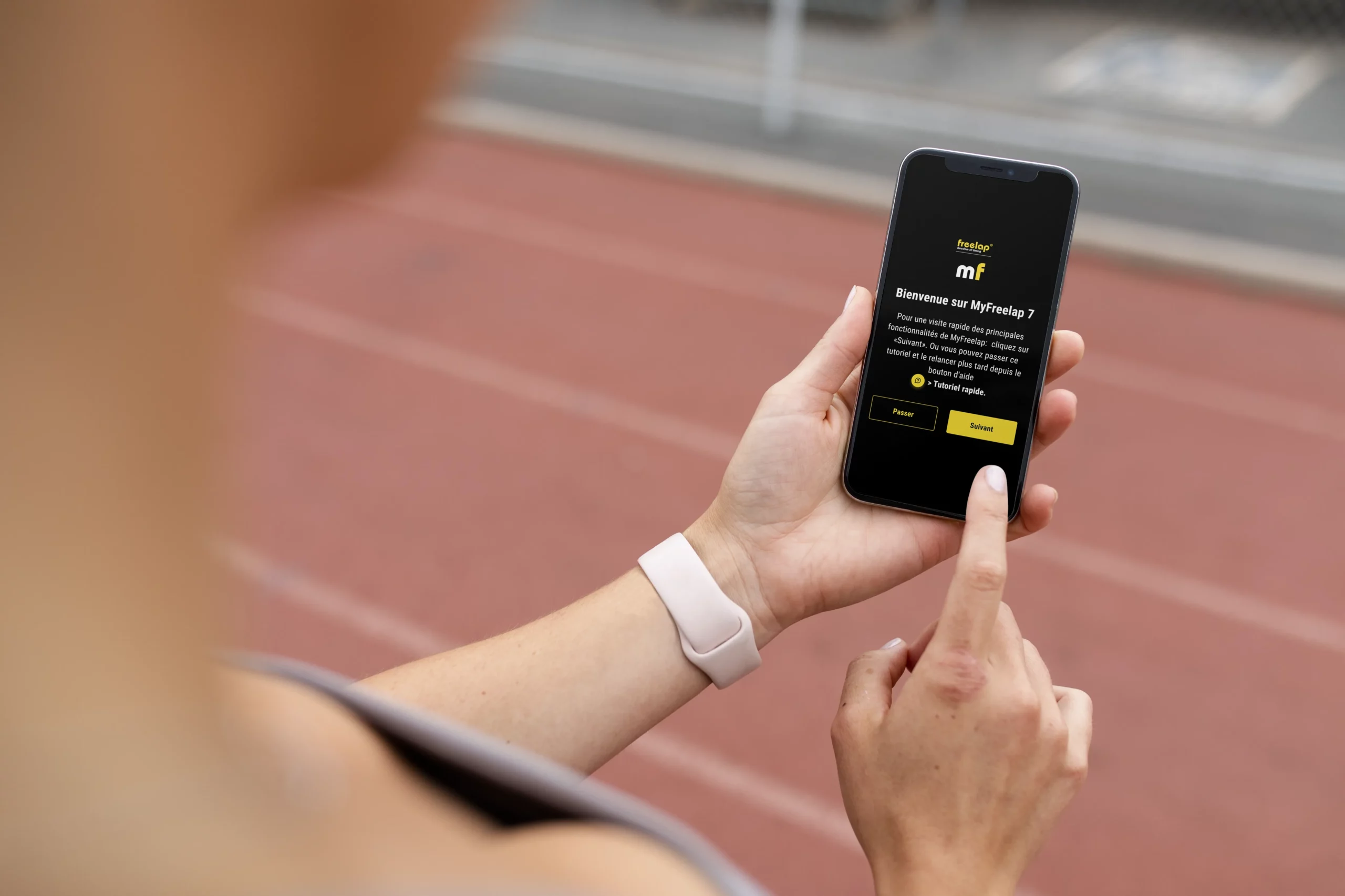
MyFreelap
Find the complete MyFreelap guide here to download the app, configure your account, start your training sessions and use your data more efficiently. MyFreelap is the mobile app that allows you to view and store the data collected with your Freelap system, with an account also accessible through the web version.
We recommend continuing to use the MyFreelap Legacy app only in specific cases. Please read this page for more details.
About

MyFreelap allows you to detect your Freelap devices, start a training session, view live data, edit your account, manage general settings, create teams, create your own drills, share your training sessions with other MyFreelap users and export your data.
Download and update
MyFreelap is a free app, available on the App Store and Google Play Store. The guide recommends always using the latest available version and specifies that, when an update is available, a notification appears in the MyFreelap account. The update is then performed from your mobile device’s app store.
Compatibility and access

MyFreelap works with or without an Internet connection, but Bluetooth must be enabled on the mobile device. The documentation indicates compatibility with iOS 13.0 minimum and Android 7.0 minimum. The app is currently translated into English, French, Chinese and Korean.
The MyFreelap account also remains accessible from the web, allowing users to retrieve their data beyond the mobile app.
Getting started
Account and login
To get started, the guide indicates 3 steps : download the app, create an account, then log in. During registration, MyFreelap sends an activation code by email to confirm the address and activate the account. If the app detects that the login credentials match an old MyFreelap Legacy account, it offers to import the data, while specifying that this is only an import.
To use the app, Bluetooth and Location Services must then be enabled on the mobile device.

Preconfiguration and tutorial
On first login, MyFreelap offers an account preconfiguration, including account setup and transponder entry. The app also provides a quick onboarding tutorial. Both can be skipped and launched again later from the Help Center.

Main menu and Help Center
The main menu provides access to Home, Teams, History and Settings.

From the Help Center, accessible via a button in the top right corner, users can find the preconfiguration, the quick tutorial, the MyFreelap guide, Freelap support and an email contact link.
Online mode and offline mode
Data is stored locally in the app. In online mode, all features are available and data is automatically synchronized with the server so it can be retrieved on other devices or through the web account. In offline mode, users must first have logged into their online account before the training session.
Offline, certain functions remain available, such as registering a new transponder, viewing settings, viewing teams, viewing drills, creating a training session, receiving data and exporting a training session. As soon as the Internet connection returns and the app is open, the data synchronizes automatically.
Settings

My account
The My account section allows users to edit account information, change the email address and password, delete the account or log out.

General settings
The general settings allow users to choose the date format, time format, distance unit, speed unit and CSV separator. They also allow users to define default training settings, such as preferred sport, BLE device used and start list type.

My Freelap transponders
This section is used to register transponders. Each transponder has a unique ID made up of 2 letters and 4 digits. Registration can be done manually or via Bluetooth for the FxChip BLE. For Bluetooth detection, the guide asks users to enable Bluetooth on the mobile device, turn on a Freelap transmitter and place the FxChip BLE approximately 30 cm from the transmitter after setting it in motion.
Start timing
From the home screen, MyFreelap allows timing to be started in two ways : through Quick Timing or through a Drill. The guide specifies that drills provide access to all features adapted to the user’s needs, while Quick Timing remains intentionally simpler.

Quick Timing
Quick Timing first asks users to choose the type of device used, either FxChip BLE or Relay Coach BLE + FxChip. This mode only provides access to basic features. The guide specifies that certain functions are not available in this mode, including advanced start list configuration, adding distances to obtain speed data, and choosing the list-based timing method. To access these functions, users must use a preconfigured drill.

Preconfigured drills
Preconfigured drills are accessible from the home screen. They can be found using the search bar or filtered by sport. Each drill gives access to setup examples, the list of required products, a setup tutorial and an execution tutorial.

Custom drills
MyFreelap also allows users to create their own drills. The guide indicates that a custom drill can then be used, modified or deleted, with one important limitation : distances cannot be modified once the drill has been created.

Configure the training session
Once the drill has been selected, the next step is to configure the training session. The guide indicates that users can modify the name, date and time, choose the Freelap BLE device used, then enter distances to obtain distance and speed data. If a drill includes at least one LAP transmitter, the distance between each transmitter must be entered. Distances are always expressed in meters.

Start list
The app then allows users to choose between several options : not using a start list, timing a single athlete in individual mode, or timing several athletes in multiple mode. In individual mode, initials and the transponder ID can be entered. In multiple mode, users must select a team, choose between Standard Timing and List-Based Timing, then manage the start list.
In Standard Timing, each athlete uses a unique transponder, and the data is assigned to them through the transponder ID. In List-Based Timing, several athletes can use the same transponder, with times assigned according to the passing order defined in the start list.

Manage the start list
The guide then details start list management. In standard mode, it is possible to deactivate absent athletes, modify their initials, and assign a unique transponder to each athlete, either from the list of registered transponders, manually, or via Bluetooth.
In List-Based Timing mode, it is possible to deactivate transponders, reorganize the passing order by drag and drop, and, in the 2-lane version, precisely assign each transponder to a specific lane.
Start and receive data
Once the training session has been configured, it can be started immediately or saved for later. The guide specifies that a training session can only be truly started to receive times from the MyFreelap app, not from the web version. From the web version, it can only be saved and then launched later on mobile.

LIVE mode is displayed when the training session is started. To receive data, users must open the desired training session and click the dedicated button. Before starting, the guide recommends attaching the transponders to the athletes, turning on and placing the transmitters, positioning the mobile device 1 meter above the ground and between 10 m and 50 m after the finish line depending on the model, and, if a Relay Coach BLE is used, placing it 10 m after the finish transmitter.

Reading live data
During LIVE mode, the screen displays the drill name and gives access to full-screen mode, sound activation or deactivation, training settings modification, data export or sharing, and stopping data reception. The upper part of the screen also displays the last time received. This display can be customized to show time or speed, as well as initials, transponder ID or first name, with a light or dark theme.

The data table then allows users to filter results by athlete, sort them in chronological, reverse chronological or ranking order, and enable or disable certain data types depending on the drill used. The guide also specifies that one or more times can be deleted by pressing and holding them for 3 seconds. In full-screen mode, users can choose to display 1, 2 or 4 times and customize the display.
Available data types include run number, ID / first name / initials, time, gap, total, distance, speed, fastest time and slowest time.


Full-screen mode
During LIVE mode, MyFreelap allows users to open full-screen mode to display data more clearly during training. From the time reception screen, users can access this mode and customize the display according to their needs.
In full-screen mode, users can choose:
- the data to display: time or speed
- the identifier type: initials, transponder ID or first name
- the theme: light or dark
- the number of times displayed simultaneously: 1, 2 or 4
History, export and sharing

History is where all training sessions are stored. From this section, users can search for a training session using the search bar, filter it by drill, type or team, then sort sessions in chronological or reverse chronological order. It is also possible to press and hold a training session for 3 seconds to delete it, including through multiple selection.

Training session management
When opening a training session from the history, the guide indicates that users can access its main information : date and time, name, drill, team and number of athletes, as well as all collected data. From this screen, it is possible to modify settings, share or export data, and start or resume time reception.
The data table then works with the same filtering, sorting, display customization and time deletion logic as during LIVE mode.
Export data
The guide specifies that the app exports exactly the data displayed on screen. This means that users can export only the results of one athlete, a specific ranking, or certain data types depending on the chosen customization. Export is available in PDF or CSV format. For CSV, users must check the separator defined in Settings > General settings > CSV separator, otherwise all data may appear in a single column.

Share a training session
From a training session, users can also choose to share it with a MyFreelap user. The guide indicates that users can view the list of users with whom the training session has already been shared, cancel a share, search for a known user, filter by team, or search for another user by email. When a training session is shared, the app sends a notification to the recipient, who can accept or reject it.

If the recipient accepts, they can view the training session and its data, customize the display, export the data and delete the training session from their own account. However, they cannot start, resume, stop, modify or reshare the training session, nor delete the data, unless they have administrator rights for that training session.
The guide also reminds users that if a team is used for a training session, it is automatically shared with all administrators of that team, who then become administrators of the training session.
Teams
The Teams section allows users to create start lists to time several athletes. It is accessible from the app’s main menu.

Create a team
To create a new team, users must enter a unique name. They can also add a description and a photo or logo, then move on to the next step to add members.

Add members
MyFreelap allows users to add members manually, but also to import a .csv file. When adding manually, the first name is required. Last name, email, transponder ID and initials are optional but recommended. The email allows the app to check whether the user already has a MyFreelap account, in order to send them an invitation.
The transponder ID makes it faster to assign a unique transponder to each athlete when creating a training session, and the initials are then used to identify athletes more easily in the data tables.
CSV import allows a team to be created more quickly from a spreadsheet. The file can contain from 1 to 5 columns : First name, Last name, Email, Transponder ID and Initials, with one member per line, up to a maximum of 500 athletes in the same team. The guide also specifies using “;” as the column separator.

Invitations and administrator rights
If a member already has a MyFreelap account, the app can send them an invitation to join the team. The guide describes several possible statuses : user without an account, invitation declined, invitation pending, or invitation accepted. When a member accepts, they see the team in their account and can access the training sessions completed with that team.
Users with administrator rights can use, modify and delete the team, but also add, modify and delete members, as well as grant or remove administrator rights. Training sessions performed with a team are automatically shared with all administrators of that team. A team can have several administrators.

Manage and use teams
The team list then allows users to manage team use. From this screen, users can edit a team’s information if they are an administrator, press and hold a team for 3 seconds to delete it, or click on it to view and manage its member list.
Useful resources
To go further, you can consult the following pages: